
Step-by-Step Guide to Open an Account with XM
Introduction
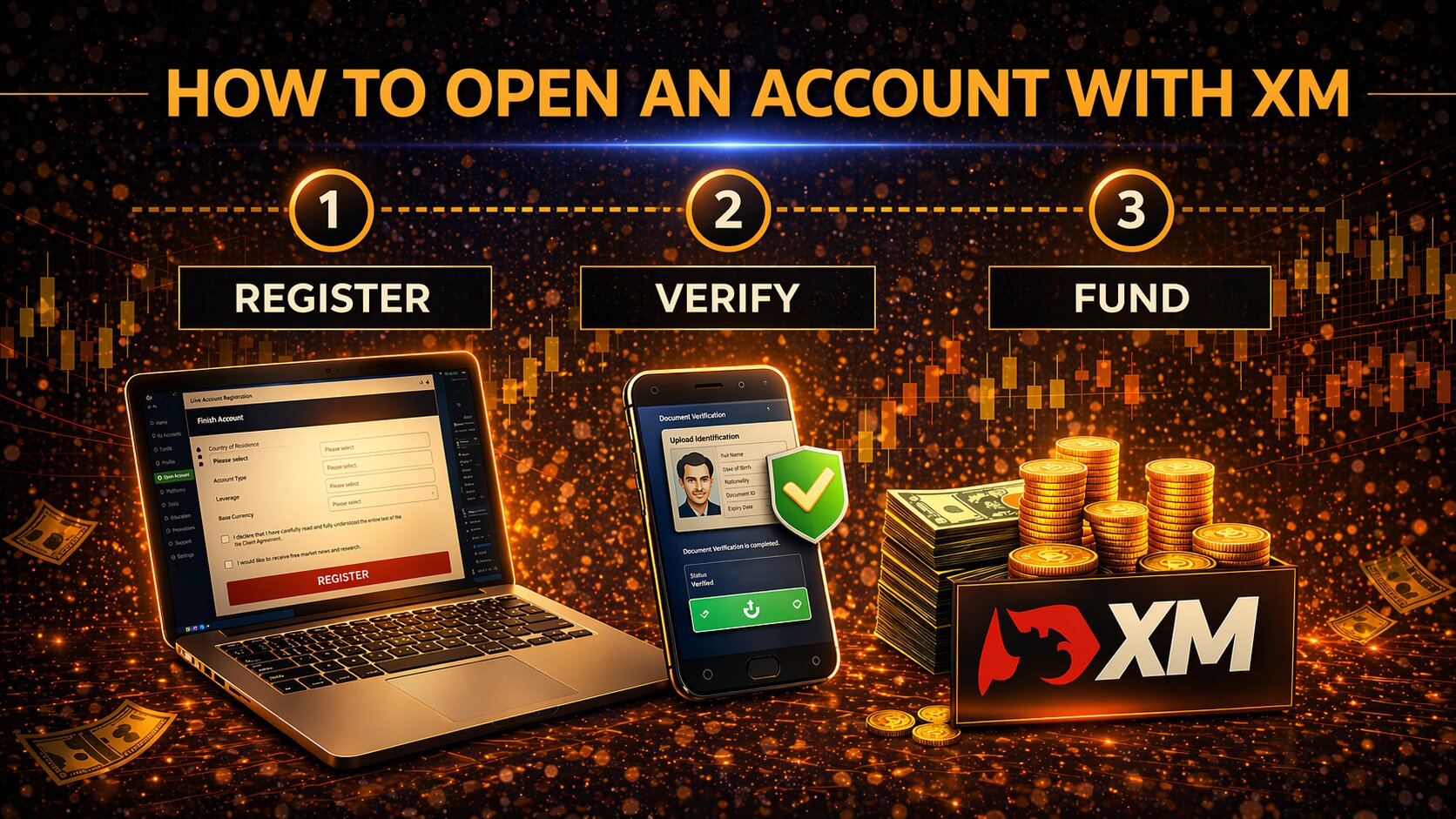
Opening an account with XM is relatively simple, but it still involves several standard registration and verification steps. Like most regulated brokers, XM asks new users to complete an application form, choose their preferred trading setup, verify their identity, and fund the account before live trading can begin. The exact options available during registration can vary depending on your country, the entity serving your region, and the type of account you choose.
Step-by-Step Guide
1. Visit the XM Website
Go to the official XM website
2. Click on "Open Account."
On the homepage, you'll see a prominent button or section that says "Open Account" or "Start Trading". Click on it to begin the registration process.
3. Fill in the Registration Form
Personal Information: You will need to provide your full name, email address, and contact number.
Account Type: Choose between a Standard Account, Micro Account, ECN Account, or other account types offered by XM, based on your trading needs.
Currency Selection: Select the currency for your account (usually USD, EUR, or other popular currencies).
Leverage: Depending on your country's regulations, leverage options may be available. Choose the leverage ratio that suits your trading style (higher leverage carries higher risk).
Trading Platform: You’ll need to choose between MetaTrader 4 (MT4) or MetaTrader 5 (MT5), which are the platforms XM offers.
4. Verify Your Email
After filling in the registration form, you’ll receive a verification email. Open it and click on the verification link to confirm your email address.
5. Submit Identity Verification Documents
To comply with KYC (Know Your Customer) regulations, you will need to verify your identity. Prepare the following documents and upload them:
Proof of Identity: A scanned copy of your passport, driver’s license, or national ID card.
Proof of Address: A utility bill, bank statement, or government document showing your full name and residential address (typically, no older than 3 months).
This is a security measure to protect you and the broker from fraud.
6. Fund Your Account
After your documents are verified, you can fund your account. XM offers a range of deposit methods:
Bank transfer
Credit/debit card
E-wallets (Skrill, Neteller, WebMoney)
Cryptocurrency (depending on your region)
The minimum deposit amount for XM is $5 for a Micro Account and $100 for a Standard Account.
7. Start Trading
Once your account is funded and approved, you can begin trading. Download the MetaTrader 4 (MT4) or MetaTrader 5 (MT5) platform, depending on your choice during registration, or use their WebTrader.
You can start executing trades, accessing market analysis tools, and using any educational resources XM provides.
8. Access Your Client Area
After registration, you can access the Client Area on the XM website, where you can manage your account, monitor your trades, check balances, and explore other tools and resources provided by XM.
Additional Tips:
XM’s Demo Account: If you are new to trading or just want to practice strategies, XM offers a free demo account with virtual funds, so you can explore the platform risk-free.
Bonuses & Promotions: XM frequently offers bonuses such as deposit bonuses or no-deposit bonuses. Check the promotions page for the latest offers.
By following these steps, you can easily open an account with XM and start your trading journey.